Windows Hello for Business provides a streamlined, secure way to sign in to Windows without the need to remember complex passwords.
Using Windows Hello for Business
To use Windows Hello for Business:
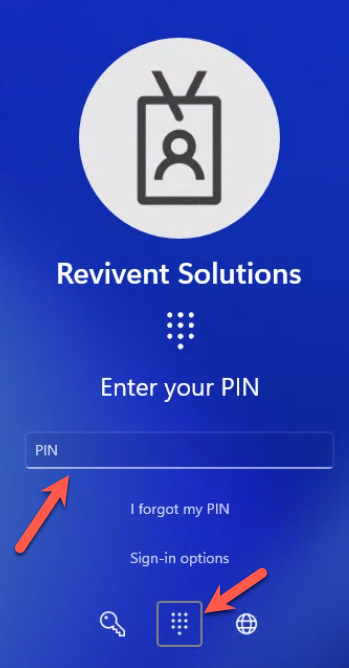
- Choose "Other User" from the bottom left hand of the Windows login screen
- Choose "Sign-in options" underneath the login prompt
- Choose the PIN option (number pad) from the logon options, and enter your PIN to sing in
Resetting your Windows Hello for Business PIN
If you've forgotten your Windows Hello for Business PIN, you can reset it by completing the following:
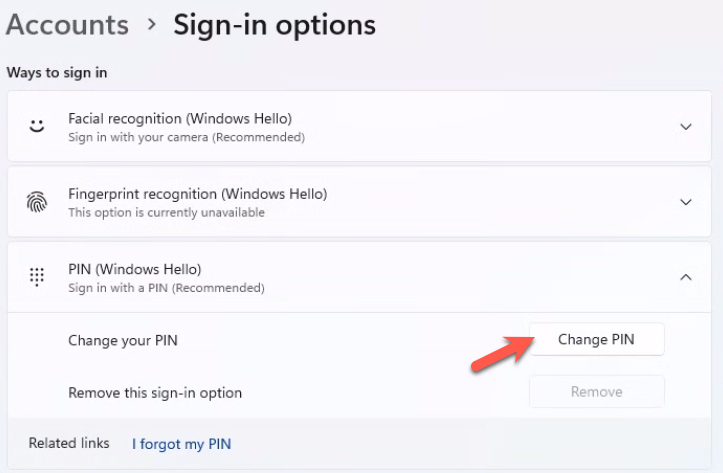
- Open the Settings application in Windows
- Choose the "Accounts" option from the sidebar and choose "Sign-in options"
- Under the "Ways to sign in" heading, choose "Change your PIN"
- If you've forgotten your PIN, you may be asked to use your password once to verify your identity
Was this article helpful?
That’s Great!
Thank you for your feedback
Sorry! We couldn't be helpful
Thank you for your feedback
Feedback sent
We appreciate your effort and will try to fix the article