Phishing emails are a common occurrence in the modern working environment. Phishing emails cannot always be flagged by Microsoft’s filters, other emails could also be misidentified and sent to spam by mistake. Additionally, phishing simulations sent out by our security awareness, INFIMA Security, should be reported for proper identification and training.
To help Microsoft (and therefore your company) improve the filters and prevent this from happening in the future, please do not ignore or delete the phishing emails. Instead, report the phishing emails to Microsoft with one of the methods listed below. This also enables IT to easily investigate the issue, should it be widespread.
Outlook on Windows
- Select the email that you want to report as phishing. Click on Report Phishing to report the email to Microsoft and identify whether it was a phishing simultation.

- On some versions of Outlook, you may need to click the "..." button, then scroll down to find the "Report Phishing" button.
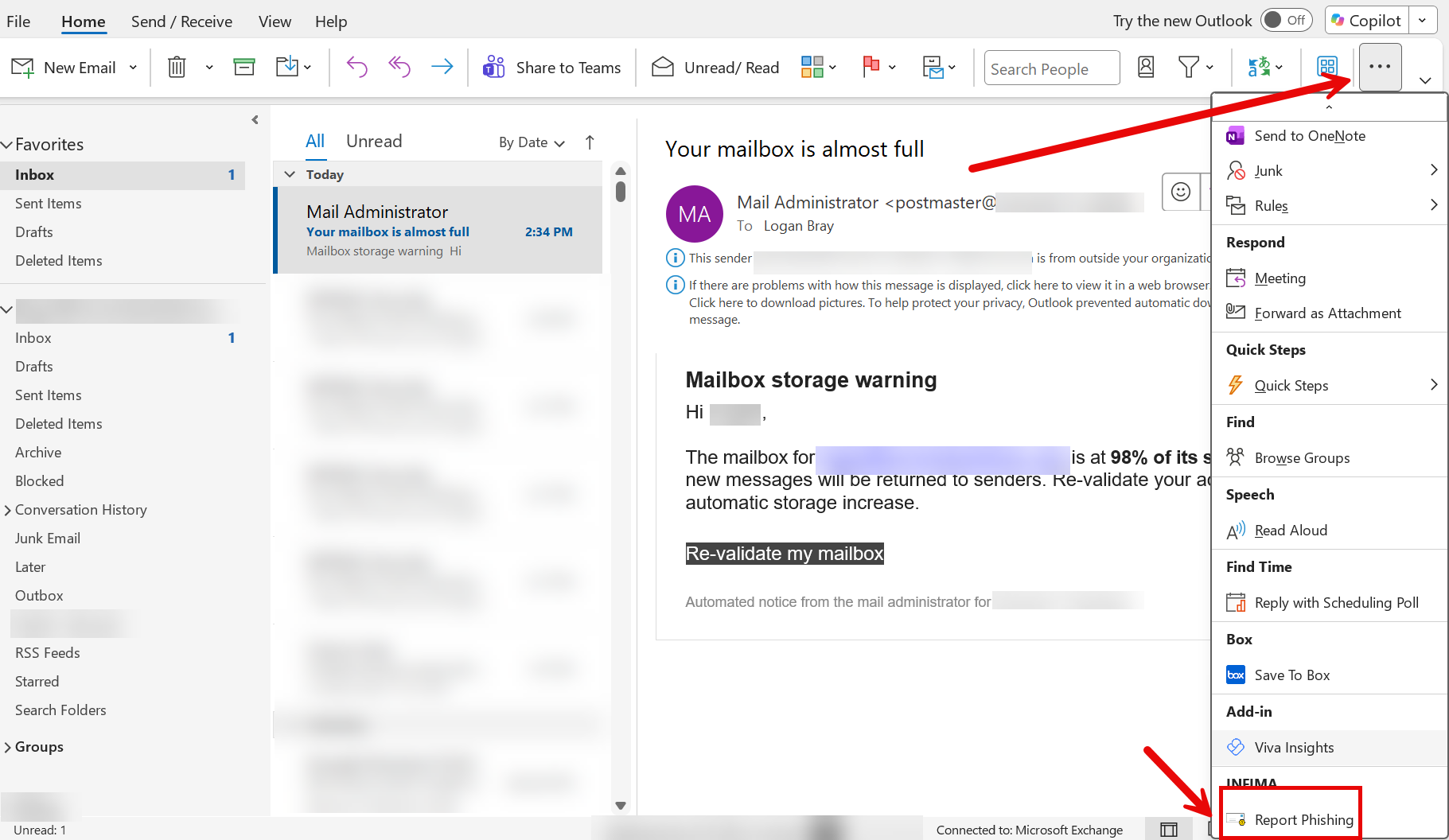
- On some versions of Outlook, you may need to click the "..." button, then scroll down to find the "Report Phishing" button.
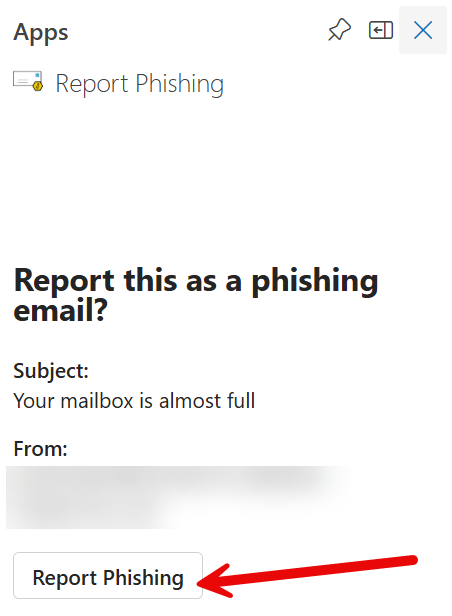
- A Report Phishing dialog box will then pop up, click on Report Phishing if you want to send a copy of this message to Microsoft to help the research and improvement of email protection technologies. Otherwise, click on the X icon to cancel.
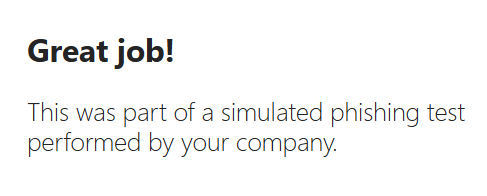
- If the email was part of a phishing simulation, you will receive be shown a notification to indicate that you successfully reported a simulation.
- If the email was NOT part of a simulation, it will be reported to Microsoft for analysis.
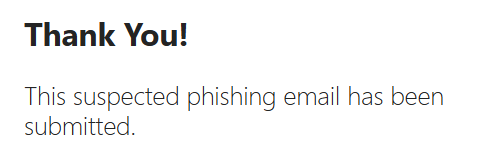
- If the email was part of a phishing simulation, you will receive be shown a notification to indicate that you successfully reported a simulation.
New Outlook/Outlook on the Web (OWA)
- Select the email that you want to mark as phishing.
- Click on Report Phishing button on the ribbon.
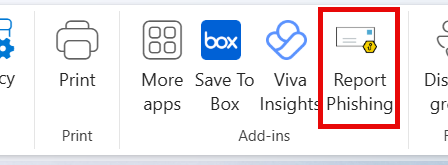
- On some versions of Outlook, you may need to click the ">" icon to view the report phishing button on the ribbon.

- On some versions of Outlook, you may need to click the ">" icon to view the report phishing button on the ribbon.
- A Report Phishing dialog box will then pop up, click on Report Phishing if you want to send a copy of this message to Microsoft to help the research and improvement of email protection technologies. Otherwise, click on the X icon to cancel.
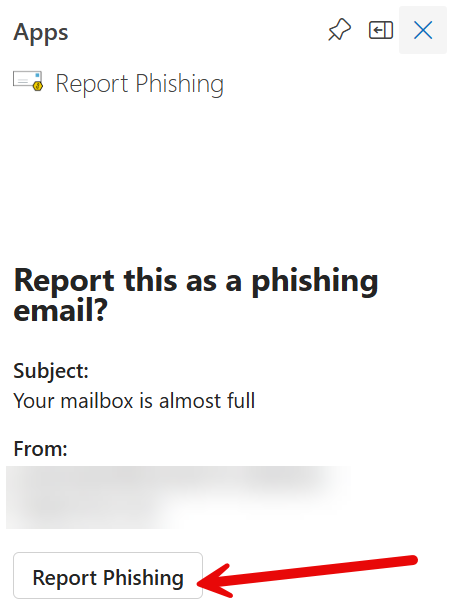
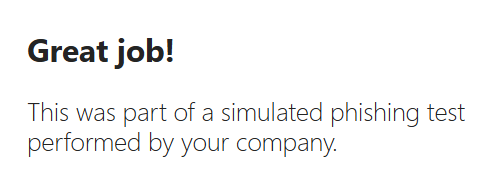
- If the email was part of a phishing simulation, you will receive be shown a notification to indicate that you successfully reported a simulation.
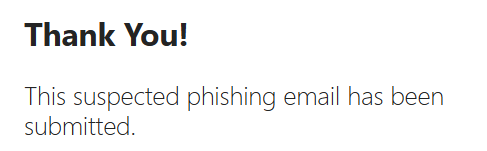
- If the email was NOT part of a simulation, it will be reported to Microsoft for analysis.
- If the email was part of a phishing simulation, you will receive be shown a notification to indicate that you successfully reported a simulation.
Outlook on Mobile (iPhone/Android)
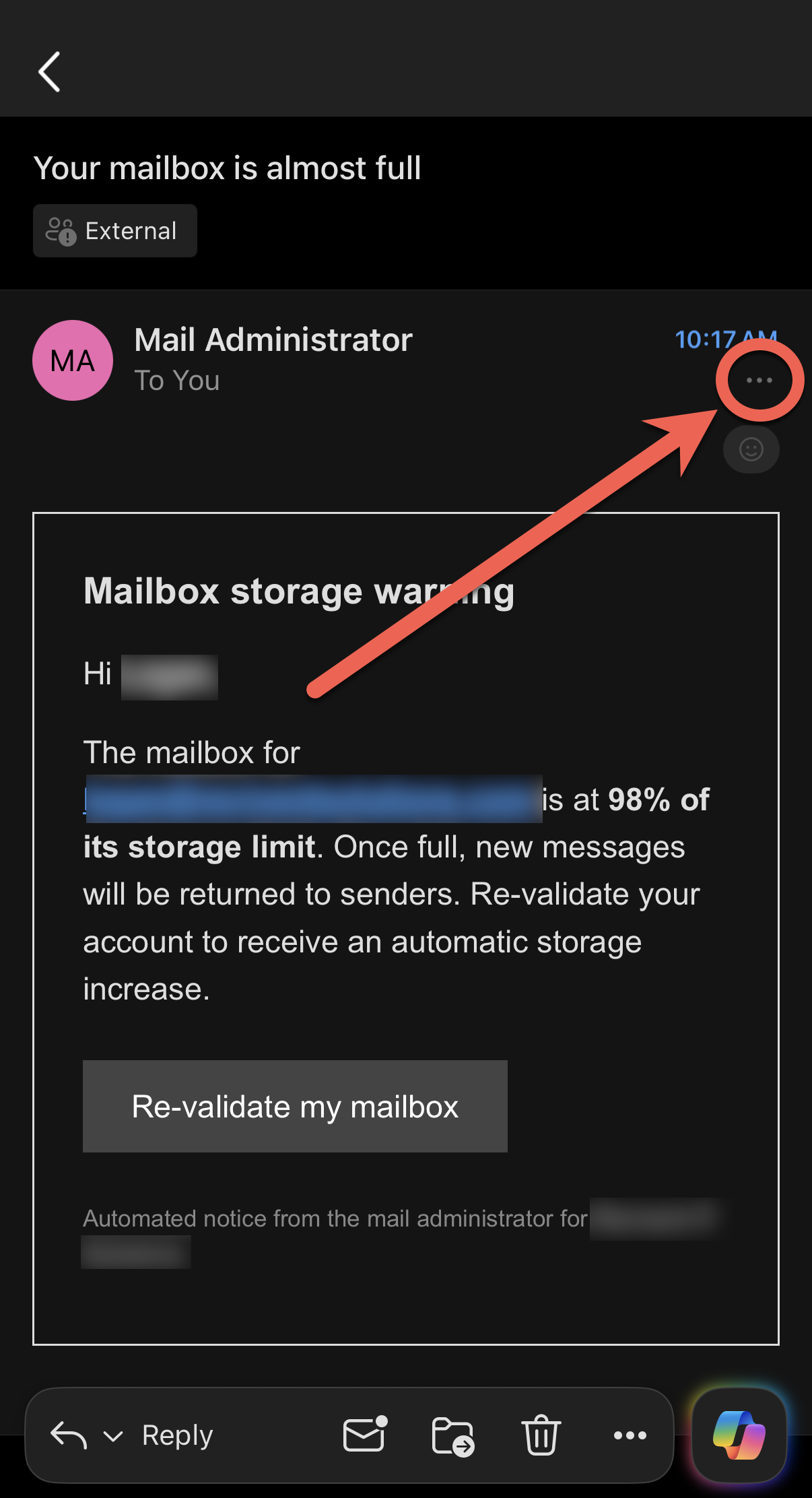
- Open the email that you want to mark as phishing, then tap the "..." icon on the top right of the email.
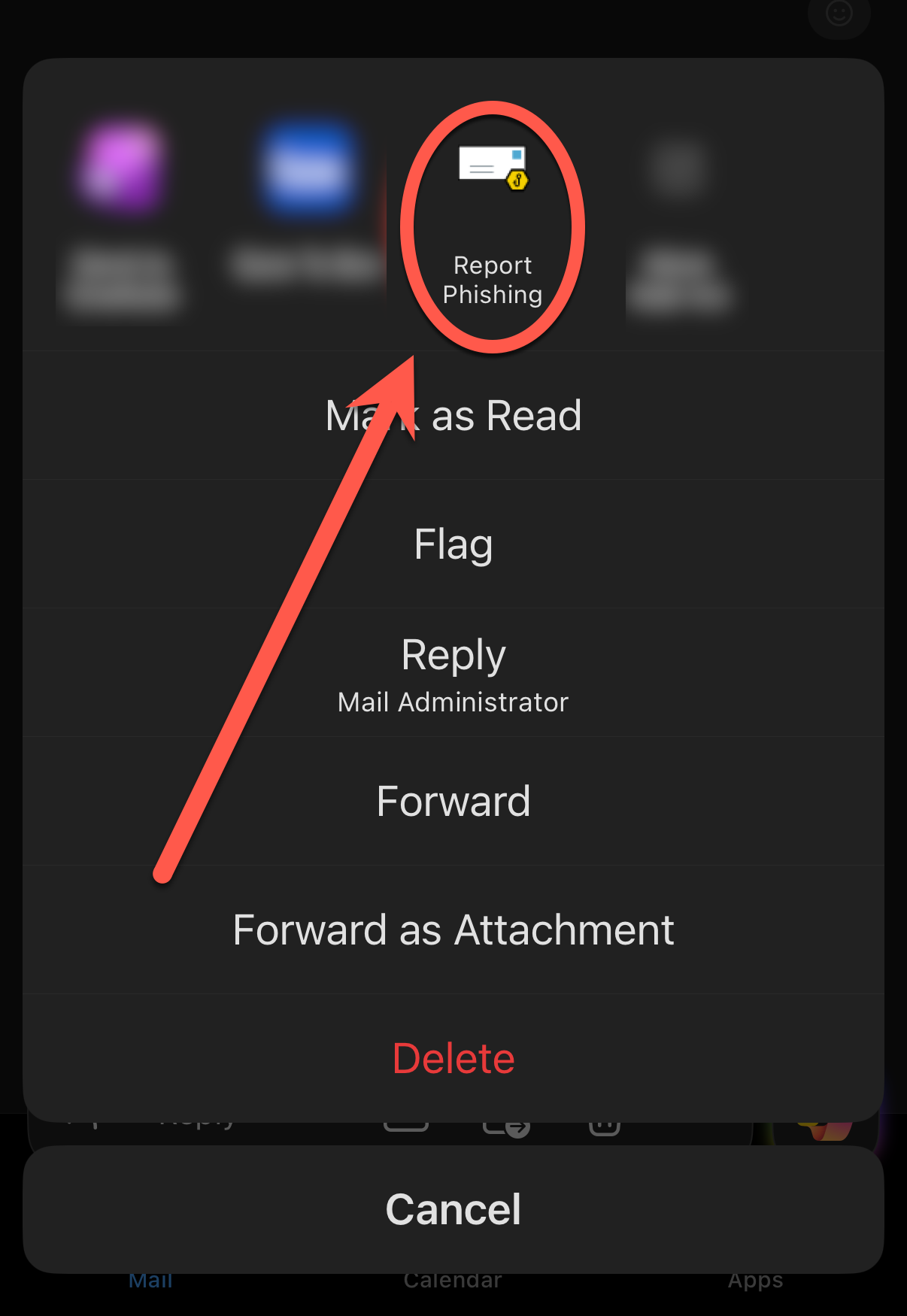
- Choose "Report Phishing" from the list of add-ins
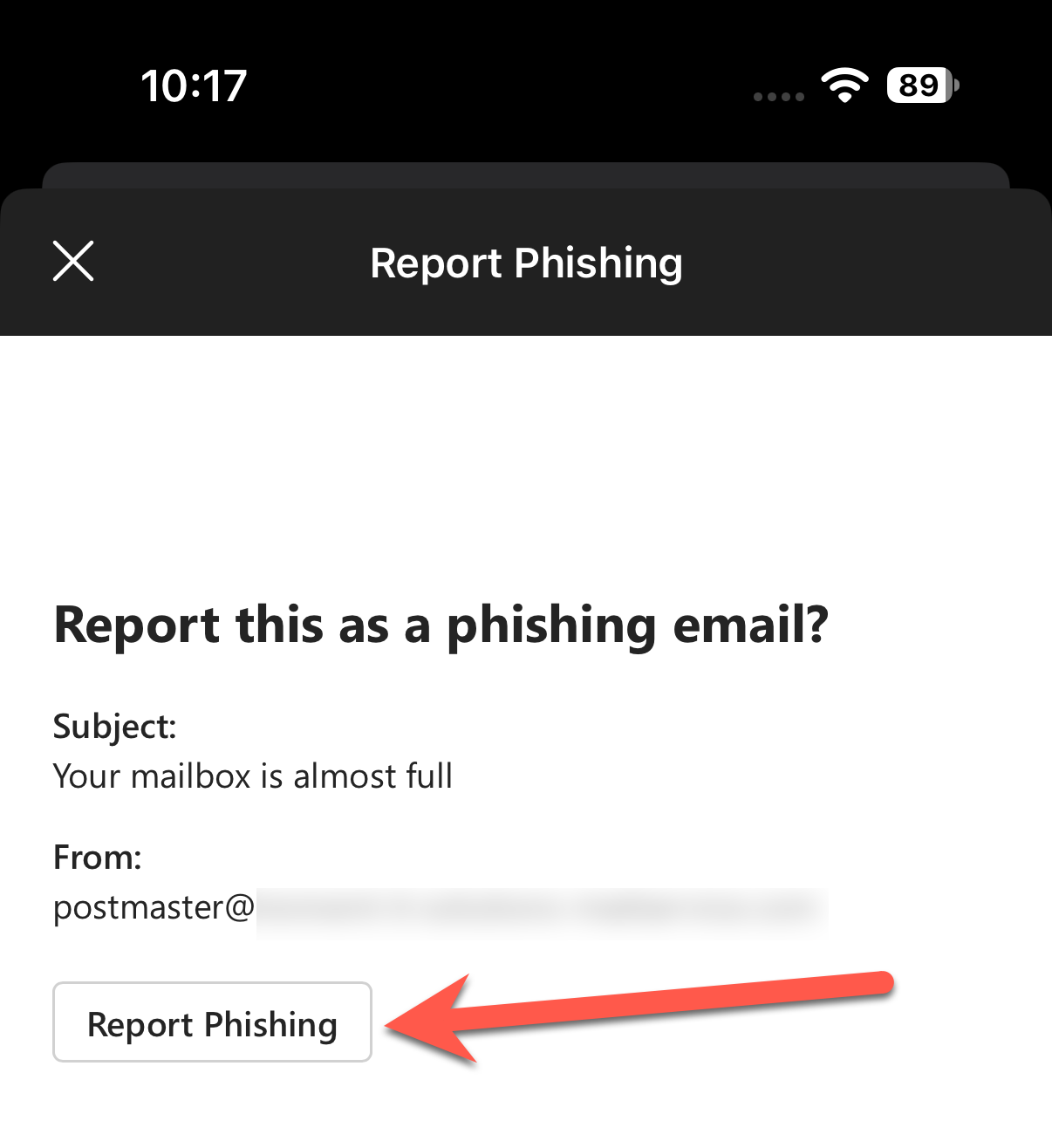
- A Report Phishing dialog box will then pop up, click on Report Phishing if you want to send a copy of this message to Microsoft to help the research and improvement of email protection technologies. Otherwise, click on the X icon to cancel
- If the email was part of a phishing simulation, you will receive be shown a notification to indicate that you successfully reported a simulation.
- If the email was NOT part of a simulation, it will be reported to Microsoft for analysis.
- If the email was part of a phishing simulation, you will receive be shown a notification to indicate that you successfully reported a simulation.
Was this article helpful?
That’s Great!
Thank you for your feedback
Sorry! We couldn't be helpful
Thank you for your feedback
Feedback sent
We appreciate your effort and will try to fix the article