Many apps are set to download automatically upon enrollment, but some apps are simply made available for download. This allows those specific apps to be easily uninstalled/re-installed if needed and allows users to choose which apps they need on their corporate devices.
Applications on corporate owned fully managed devices are made available via the Google Play Store. Depending on the level of access to the Google Play Store, there may be two different views for downloading apps. On devices that are fully Google Play-enabled, they will have access to the full Google Play Store with a "Work Apps" section. On devices with Google Play Store disabled, they will only be able to view the "Work Apps" section in Google Play.
Downloading Work Apps from Google Play Store
Devices with Google Play Fully Enabled (Office Users)
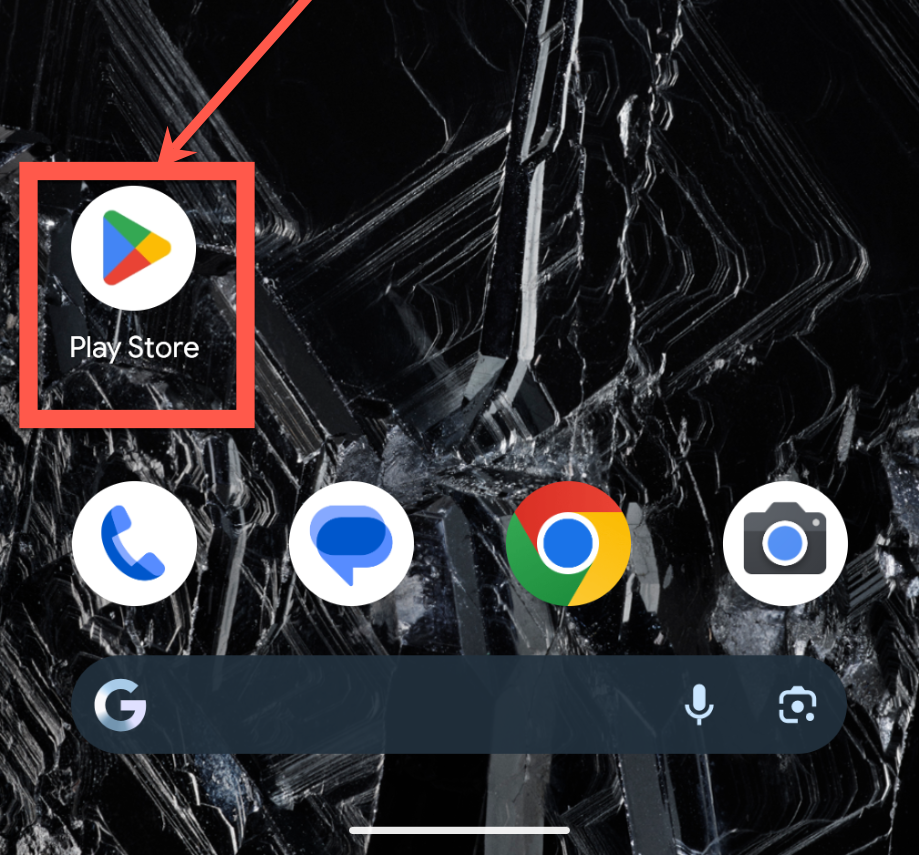
- Open the Google Play Store on the device
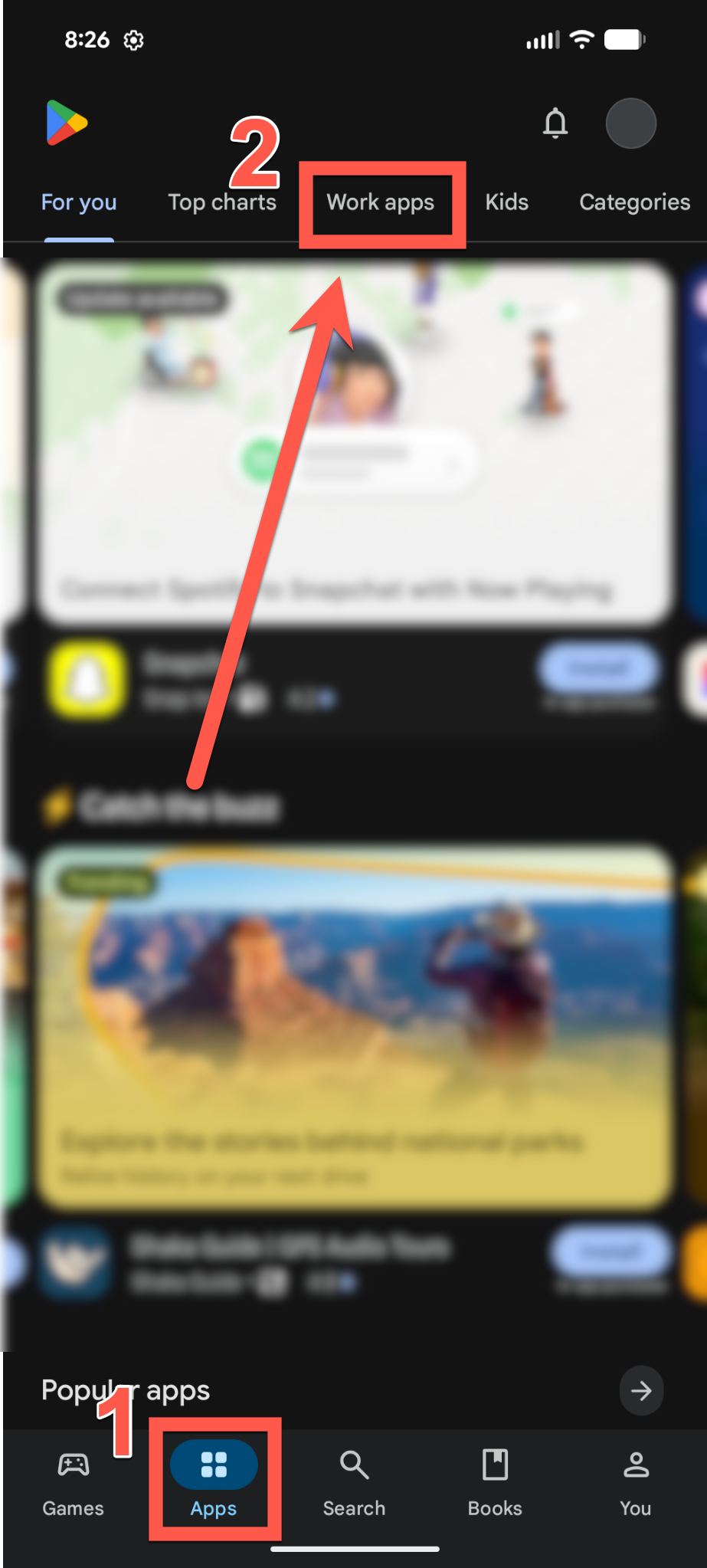
- Tap the "Apps" section on the bottom, then tap "Work Apps" at the top of the app
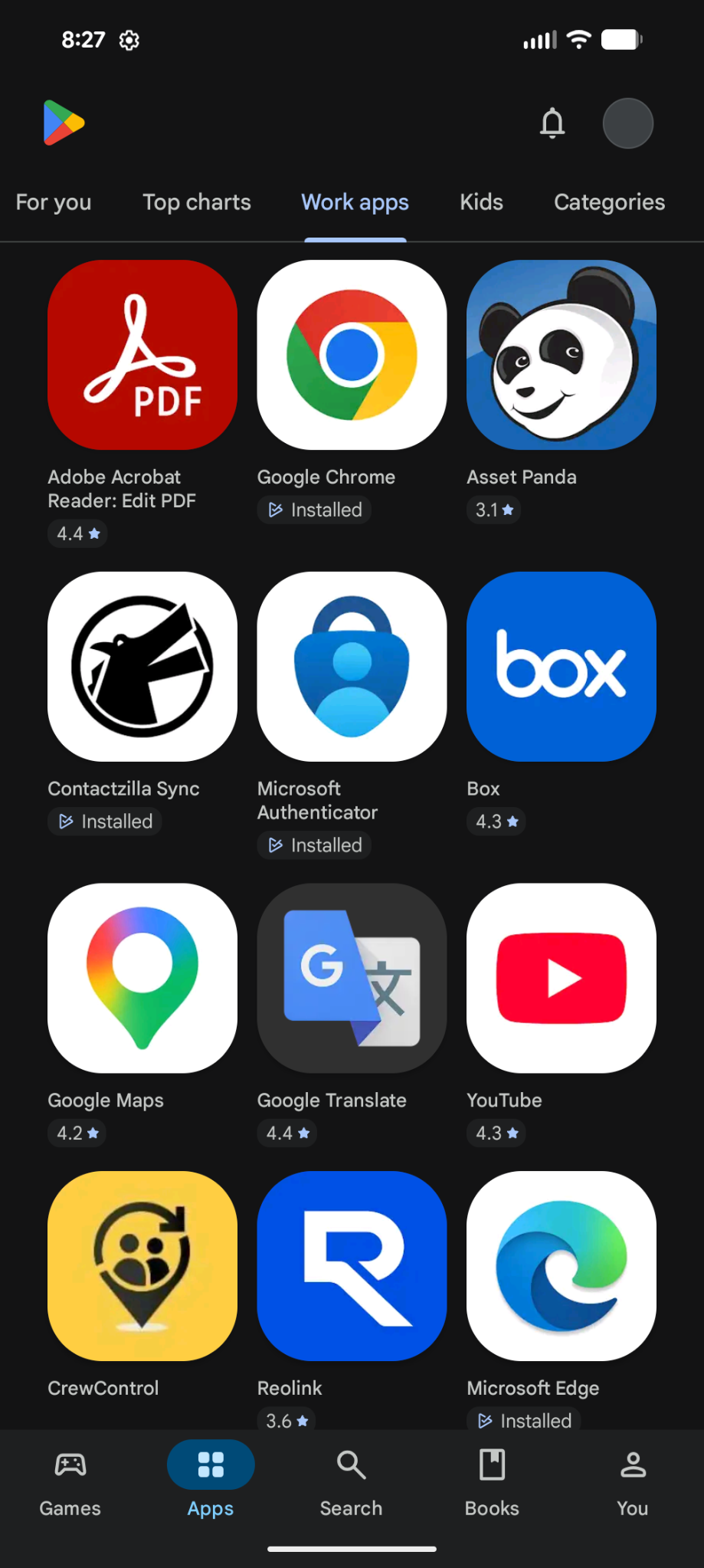
- Download the necessary work apps from the list of applications
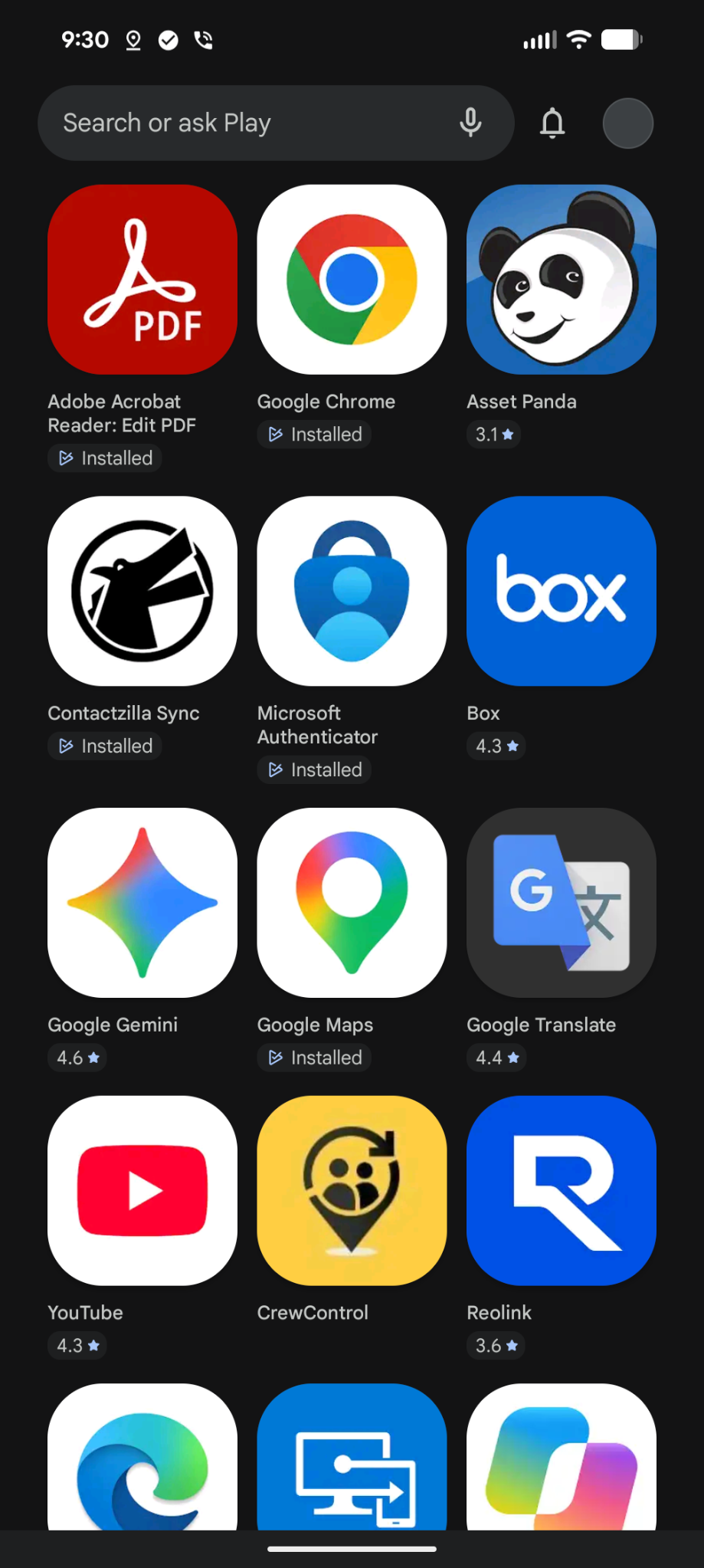
Devices with Google Play Fully Disabled (Field/Crew Users)
- Open the Google Play Store on the device
- Download the necessary work apps from the list of applications
Was this article helpful?
That’s Great!
Thank you for your feedback
Sorry! We couldn't be helpful
Thank you for your feedback
Feedback sent
We appreciate your effort and will try to fix the article